OceanVal Q&A#
How do I validate multiple simulations?#
If you want to validate multiple simulations with a single script, you should make use of the out_dir option in the oceanval.matchup, and the data_dir and output_dir options in the oceanval.validate function. These will enable OceanVal to store output in separate folders.
When your code has finished validating one simulation, you should reset things as follows:
oceanval.reset()
This will clear any of the observational matchups you have previously added using oceanval.add_point_comparison and oceanval.add_gridded_comparison functions and will give you a clean slate to validate the next simulation.
How do I speed up validations?#
By default, OceanVal will use 6 CPU cores to carry out matchups. If you want to speed things up, change this number in the oceanval.matchup function using the cores argument.
For example, to use 12 cores:
oceanval.matchup(..., cores=12, .... )
How do I view the data matchups?#
Data matchups are stored in the oceanval_matchups directory inside the output directory you specified. Gridded data will be in the “gridded” directory and point data in the “point” directory. The folder structure should be self-explanatory, with the gridded data stored as .nc files and the point data stored as .csv files.
I get a “TypeError: clean_all() takes 0 positional arguments but 2 were given”. What do I do?#
This message should be ignored. It is a quirk in the behaviour of a dependency of the Jupyter Book package, and it does not mean anything is going wrong.
Can I validate using gridded observational data from OPeNDAP?#
Yes. OceanVal can access gridded observational data from OPeNDAP servers. The file path will just need to end with “.nc”.
You can use the oceanval.add_gridded_comparison function to add the observational data as usual, but you just need to set thredds=True.
For example, to validate model temperature against the COBE SST data hosted by NOAA PSL:
oceanval.add_gridded_comparison(
    name="temperature",
    obs_path = "https://psl.noaa.gov/thredds/dodsC/Datasets/COBE2/sst.mon.mean.nc"
    obs_variable="sst",
    model_variable="temperature",
    thredds=True
)
Something in my simulation should really be a missing value. What can I do?#
If something in your simulation output should be a missing value, you can just use the as_missing argument in oceanval.matchup.
For example, if any 0 values should really be missing values, you can do:
oceanval.matchup(..., as_missing = 0, .... )
How do I spatially subset data before validation?#
You can use the lon_lim and lat_lim arguments in the oceanval.matchup or oceanval.validate functions to spatially subset data before validation. For example, to only validate data in the North Atlantic (lon: -80 to 0, lat: 0 to 60):
oceanval.matchup(..., lon_lim = [-80, 0], lat_lim = [0, 60], .... )
How do I use only a specific year range?#
You can use the start and end arguments in the oceanval.matchup function to only validate data in a specific year range. For example, to only validate data from 2000 to 2010: .. code:: ipython3
oceanval.matchup(…, start = 2000, end = 2010, …. )
If you want fine-grained control, you can also specify these in the oceanval.add_point_comparison and oceanval.add_gridded_comparison functions using the start and end arguments there. For example, to only validate data from 2010 to 2015:
oceanval.add_point_comparison(..., start = 2010, end = 2015, .... )
How do I carry out vertical validation?#
If you want to carry out vertical validation, you first need to specify the vertical argument in the oceanval.add_gridded_comparison or oceanval.add_point_comparison function for each variable you want to validate vertically.
For example:
oceanval.add_point_comparison(
    ...,
    vertical=True,
    ...
)
Once you have done this, you will need to specify the thickness argument in the oceanval.matchup function. If you have z-level data, i.e. the depth levels are at fixed depths in all cells, just set thickness=”z_level”. If the cell thicknesses vary spatially, e.g. in a sigma or hybrid coordinate system, you will need to provide a file containing the thicknesses.
oceanval.matchup(
    ...,
    thickness="z_level",
    ...
)
For a simulation with varying cell thicknesses, you would do something like:
oceanval.matchup(
    ...,
    thickness="/path/to/thickness_file.nc",
    ...
)
if it is a file containing the thicknesses. If the thickness variable is stored in one of the simulation files, just do:
oceanval.matchup(
    ...,
    thickness="thickness_variable_name",
    ...
)
OceanVal will then search for the variable and extract the thicknesses for you.
I would like a new feature in OceanVal. How can I request this?#
Please open an issue on the OceanVal GitHub page: pmlmodelling/oceanVal#issues.
Can I use OceanVal to compare simulations against each other?#
OceanVal is not explicitly designed to compare simulations against each other, but you can do this by treating one simulation as “observations”. This will only work for the gridded comparison, not the point comparison. If you do this, you should see how simulations compare climatologically and across time.
How do I remove files hanging over from previous runs?#
OceanVal generates some temporary files during the validation process, which should be automatically removed by the end of the session. However, files can sometimes be left behind due to system crashes etc. OceanVal will tell you this when you import it.
If this happens, you can remove them as follows:
import oceanval
oceanval.deep_clean()
Alternatively, you can just go to your temporary directory and just find files with “_ecoval_output” in them and delete them.
How do I ensure the model and observational data have the same units?#
Internally, OceanVal will assume that the model and observational data are in the same units. However, you can modify the observational data units using the obs_multiplier or model_adder arguments in the oceanval.add_point_comparison and oceanval.add_gridded_comparison functions.
For example, if you wanted to convert observational data from mol/m3 to mmol/m3, you could do:
oceanval.add_point_comparison(
    ...,
    obs_multiplier = 1000,
    ...
)
Note: there is special handling when you name a variable “temperature”, where OceanVal will automatically convert the observation to the model units.
Why do I need to say if gridded data is climatological?#
If you do not provide this, it can be unclear how to handle gridded observational data. For example, a file could have a climatological, but will have time information that says the year is 2000. If you do not specify if this is a climatology, there is no way of knowing if it represents the year 2000, and therefore should only be matched up for the year 2000, or if it is a climatology and should therefore be compared with a multi-year average from the simulation.
Can I change OceanVal’s analysis?#
Yes. If you want to fine-tune things, such as changing a plot-colour scale or tweaking language, you can. You will need to open the jupyter notebooks located in the “oceanval_report/notebooks” directory.
Once you have modified them you can then rebuild the report using:
oceanval.rebuild(data_dir = "/foo/bar")
This will overwrite your original report with the results of the modified analysis.
Why does each map in my report have its own colour bar?#
Maps shown side by side, such as the model and observation climatologies, share a single colour bar
when nctoolkit 1.3.2 or later is installed. OceanVal then draws them with nctoolkit’s panel_plot,
without longitude and latitude labels. With older versions of nctoolkit, each map gets its own colour bar.
The colour scale is the same either way. To get the shared colour bar, upgrade nctoolkit and run
oceanval.validate or oceanval.compare again:
conda install -c conda-forge "nctoolkit>=1.3.2"
How do I make sure OceanVal uses the correct simulation files?#
OceanVal will automatically identify the file path pattern in a directory that identifies the simulation files that contain a specific variable.
It will tell you the file pattern it has identified, along with an example of a file it will use. Furthermore, by default OceanVal is strict about the naming convention, so a file will have to have as many characters as the example given.
For example, consider a case where the general file pattern was something like this:
eORCA1_1m_**_**_grid_T_**-**.nc
and an example file was:
eORCA1_1m_20100101_grid_T_20101231.nc
oceanval would then only consider files with basename lengths of 36 characters (the length of the example file).
In almost all cases this will pull out the correct files.
However, in some cases the files may not have a totally strict naming convention, which can trip up OceanVal. In this case you will want to use the exclude parameters in the oceanval.matchup function. This will ignore certain files that contain particular character strings.
oceanval.matchup(
    ...,
    exclude = ["badpattern1", "badpattern2"],
    ...
)
This would then ignore any files with “test_grid” in the name.
Note: If you have not followed a totally strict naming convention, you may want to set the strict_names argument in the oceanval.matchup function to False. This is possibly useful if you have done written files like “simulation_output_1.nc”,…, “simulation_output_10.nc”, where the lengths of the basenames differ.
Just set strict_names to False as follows:
oceanval.matchup(
    ...,
    strict_names = False,
    ...
)
In this case, the pattern stays the same, but OceanVal will not filter files based on the length of the basenames.
Can I add information about my simulation in the report?#
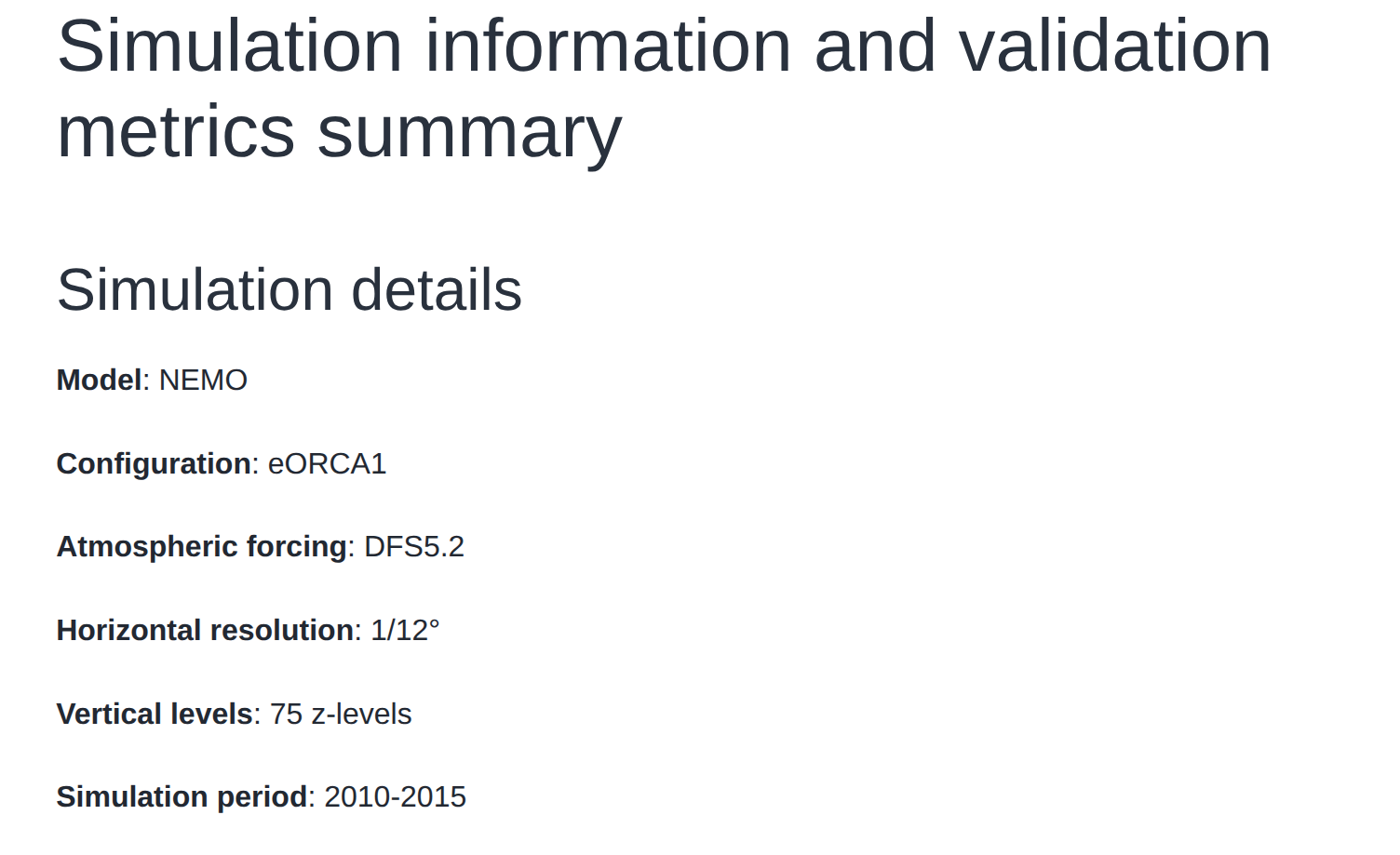
Yes. This can be done using the sim_info argument in the oceanval.validate function.
This should be a dictionary, which supplies the desired information.
For example:
sim_info = {
    "Model": "NEMO",
    "Configuration": "eORCA1",
    "Atmospheric forcing": "DFS5.2",
    "Horizontal resolution": "1/12°",
    "Vertical levels": "75 z-levels",
    "Simulation period": "2010-2015",
}

oceanval.validate(
    ...,
    sim_info = sim_info,
    ...
)
This would then be displayed in the report summaries tab as follows